How Do I Register My Shark Vacuum Cleaner: Easy Guide
To register your Shark vacuum cleaner, visit Shark’s product registration page and enter your model and purchase details.
Learning how do i register my shark vacuum cleaner takes only a few minutes, but the right steps can protect your warranty and make support much easier. This guide explains where to find your model number, what information to prepare, how to fix common registration problems, and what registration can and cannot do.
Why register your Shark vacuum cleaner?
Registering your Shark vacuum cleaner creates a record of your product with the manufacturer. It can help Shark identify your model, check its warranty status, and provide more relevant support if you need replacement parts or troubleshooting help.
Registration may also help you receive product updates or safety notices. It does not replace your receipt, however. Your proof of purchase is still important because warranty service may depend on the purchase date and the seller.
The main benefits include:
• Easier warranty support when you need help
• Faster identification of your vacuum model
• Access to product care information
• Updates about safety notices or service issues
• A simple record of your purchase details
Registration is not always required for every warranty claim. Still, it is a smart step. Think of it like saving your vehicle’s service details. You may not need the record today, but you will be glad to have it later.

What you need before registering
Before you ask how do i register my shark vacuum cleaner, collect the key details first. Having this information ready makes the process faster and reduces errors.
Prepare the following:
• Your Shark vacuum model number
• The product serial number, if requested
• Your purchase date
• The name of the store or website where you bought it
• A copy of your receipt or order confirmation
• Your email address
• Your mailing address and phone number, if requested
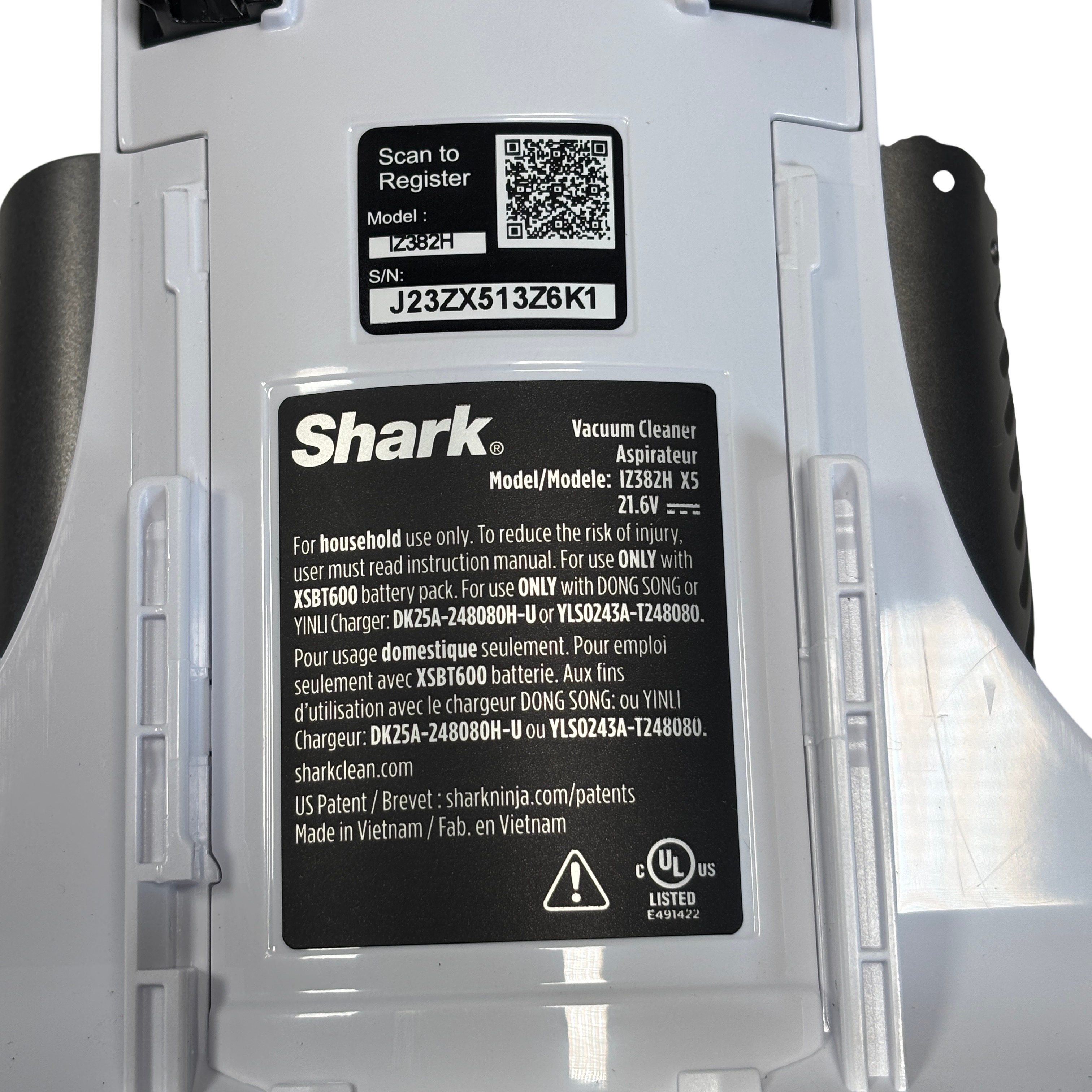
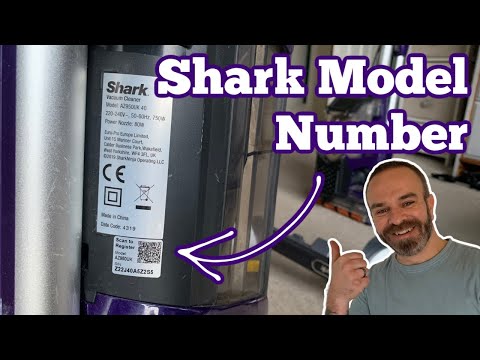
The model number is the most important detail. Shark model numbers often include letters and numbers, such as NV360, AZ1002, IZ483H, or WV201. The exact format depends on the vacuum type.
You can usually find the model number in one of these places:
• A label on the bottom of the vacuum
• A sticker behind or below the dust cup
• The handle or main body of a cordless model
• The battery area
• The original box
• The product manual
• Your online order page
Take a clear photo of the label before entering the details. This small step helps prevent mistakes between similar characters, such as the number 0 and the letter O.
How do i register my Shark vacuum cleaner online?
The online process is usually the fastest way to register a Shark vacuum cleaner. Use a trusted device and make sure you are on Shark’s official website for your country.
Follow these steps:
- Open the official Shark website.
- Look for Product Registration, Register Your Product, or Support.
- Select the product registration option.
- Choose the correct product category, such as upright vacuum, cordless vacuum, robot vacuum, or handheld vacuum.
- Enter the model number exactly as shown on the product label.
- Add the serial number if the form requests it.
- Enter your purchase date and retailer.
- Provide your contact information.
- Review the privacy and communication choices.
- Submit the form.
- Save the confirmation email or registration number.
The wording may differ by country and product line. If the website shows a sign-in option, you may need to create or use a Shark account before completing registration.
When considering how do i register my shark vacuum cleaner, do not guess the model number. A single wrong letter can connect your record to a different product. If the form rejects your number, compare it with the label and remove extra spaces.
How to find your Shark vacuum model number
Finding the correct model number is often the hardest part of registering a Shark vacuum cleaner. The label may be small, hidden, or partly covered by dust.
Unplug the vacuum before turning it over or checking areas near the brush roll. For a cordless model, remove the battery only if the design allows safe removal.
Check these common locations:
Upright Shark vacuums
Look at the bottom of the main body, behind the dust cup, or near the power cord. Some upright models have a silver or white label on the back.
Cordless Shark vacuums
Check the handle, battery compartment, floor nozzle, or area below the dust cup. The model number may also appear on the charging dock.
Shark robot vacuums
Look underneath the robot, near the brush roll, dust bin, or charging contacts. The model information may also appear in the app or original packaging.
Shark handheld vacuums
Inspect the side of the handle, the battery area, and the underside of the unit. Keep the box if you still have it because small handheld labels can be difficult to read.
Do not confuse the model number with a barcode, part number, or serial number. If you are unsure, compare the label with the product photos and manual on the official Shark support page.

How do i register my shark vacuum cleaner without a receipt?
You may still be able to submit a product registration without uploading a receipt. Many registration forms ask for the purchase date and retailer but do not require the receipt during the first step.
However, you should keep your receipt. Shark may request proof of purchase when you make a warranty claim. A bank statement, online order email, or retailer account history may help, but acceptance depends on the warranty terms and the support team.
Try these options if you lost the receipt:
• Search your email for the retailer’s order confirmation
• Check your store account or purchase history
• Contact the retailer and ask for a duplicate receipt
• Look at your credit card or bank statement
• Take a photo of the vacuum’s model and serial labels
• Contact Shark support before submitting a warranty request
Registration does not usually prove when or where you bought the vacuum. That is why storing the receipt in cloud storage is a useful habit. Create a folder for home appliances and add the receipt, manual, and registration email.
How do i register my shark vacuum cleaner by phone or mail?
Online registration is convenient, but some people prefer phone or mail support. This may be useful if the website does not accept your model number or if you have limited internet access.
Start by checking the paperwork included with your vacuum. The product insert may list a phone number, mailing address, or registration card. Use the current contact details on Shark’s official website because support information can change.
When contacting support, have these details ready:
• Model number
• Serial number
• Purchase date
• Retailer name
• Your contact information
• A description of the registration problem
Never send your original receipt by mail. Make a copy or use a clear scan. Also avoid sharing payment card numbers unless a secure support process specifically requires them.
In my experience helping people with appliance registration, the most common delay comes from unclear photos and incomplete purchase details. A well-lit label photo and a saved order confirmation often solve the issue quickly.
Common Shark registration problems and solutions
Registration errors are usually simple to fix. Check the following issues before contacting support.
The model number is not accepted
Confirm that you selected the correct product category. Then enter the model number without extra spaces or punctuation. Check whether a letter has been mistaken for a number.
The form will not submit
Review every required field. Some forms require a phone number, ZIP code, purchase date, or agreement to privacy terms before submission.
The product is too old
Older products may not appear in the current online registration tool. Contact Shark support and provide the model number directly.
The confirmation email does not arrive
Check your spam, junk, promotions, and clutter folders. If the email is missing, wait a short time and then try the registration process again without creating duplicate entries.
The vacuum was a gift
Use your own contact details, but enter the original purchase date if you know it. Ask the gift giver for a receipt or order confirmation if warranty service may be needed.
The vacuum was bought from a marketplace
Enter the actual seller or marketplace name as accurately as possible. Keep the marketplace order record because warranty eligibility may depend on the seller and purchase date.
A registration problem does not automatically mean your vacuum has no warranty. It only means the online form could not match the information. Support can often review the details manually.
Does registration activate the Shark warranty?
Product registration may connect your vacuum with Shark’s records, but warranty coverage usually depends on more than registration. The model, purchase date, original seller, location, and proof of purchase can all matter.
Read the warranty information included with your vacuum. Warranty terms can vary by product and country. Some coverage applies only to the original purchaser, while other terms may address gifts or replacement products differently.
Registration generally does not:
• Extend the warranty period
• Replace proof of purchase
• Guarantee free repairs for every problem
• Cover normal wear or misuse
• Transfer coverage automatically to another owner
It can still make a warranty request smoother. If Shark already has your model information, you may spend less time explaining which product you own.
Use the warranty as a set of rules, not a promise that covers every repair. Damage from blockages, improper care, unauthorized repairs, or normal wear may receive different treatment under the terms.

Privacy and email choices during registration
When you register a Shark vacuum cleaner, read the form before selecting marketing options. Product registration may ask whether you want promotional emails, surveys, or product news.
You can often choose whether to receive marketing messages. This choice may not affect your ability to register the vacuum or request warranty support.
Use a secure connection and enter information only on the official Shark website. Avoid registration links from random emails, online comments, or unfamiliar advertisements.
Good privacy habits include:
• Check the website address before entering personal details
• Use a unique password for your account
• Save the confirmation email in a safe folder
• Do not share your registration code publicly
• Unsubscribe from marketing messages you do not want
Registration should feel like filing an appliance record, not handing over unnecessary personal information. Provide only the details the form requests.
Mistakes to avoid when registering a Shark vacuum
A few common mistakes can create problems later. The biggest one is entering an incorrect model number.
Avoid these errors:
• Registering a different model from the product box
• Using the shipping date instead of the purchase date
• Throwing away the receipt after registration
• Entering a retailer name that does not match the order record
• Using an old email address that you cannot access
• Assuming registration replaces warranty proof
• Submitting the same product several times
• Ignoring the confirmation email
One lesson I have seen repeatedly is the value of taking photos at the start. Photograph the model label, serial label, receipt, and box. These images act like a small safety net if the vacuum needs service months later.
If you make an error, do not submit several duplicate registrations. Contact Shark support and explain what needs to be corrected. Duplicate records can make support slower rather than faster.
What to do after registration
After you register your Shark vacuum cleaner, create a simple record for future use. Save the confirmation email and write down the registration date.
Store these items together:
• Product model number
• Serial number
• Purchase date
• Retailer
• Receipt or order confirmation
• Warranty details
• Registration confirmation